Large-format printer troubleshooting is essential for maintaining print quality, minimizing waste, and maximizing productivity. Whether you're experiencing banding, printhead strikes, color inconsistencies, or curing issues, identifying the root cause can help prevent costly downtime. This wide-format printer troubleshooting guide covers the most common printing problems and provides practical solutions for improving output quality across a variety of inkjet printing technologies.
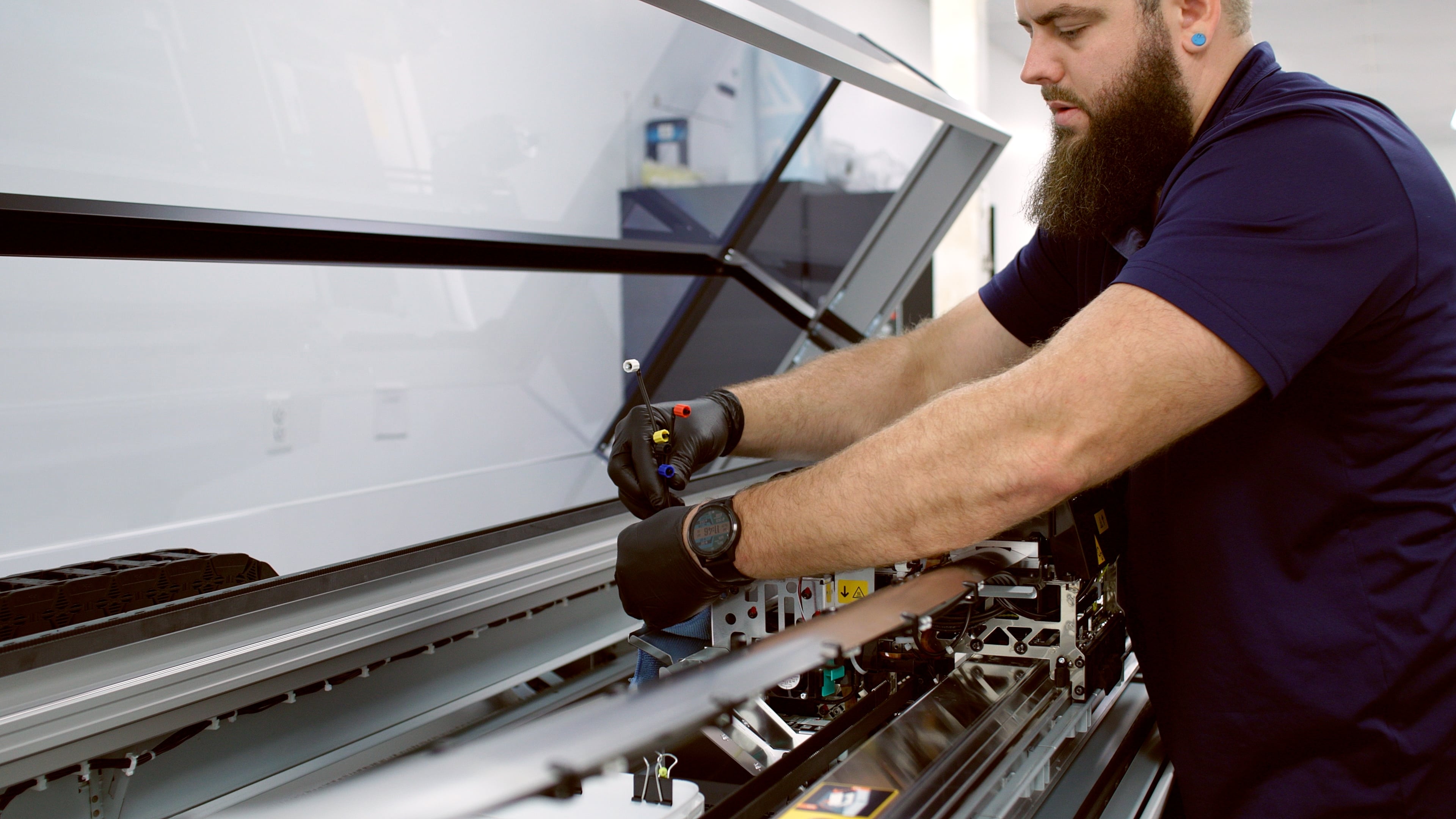
How to Fix Printhead Strikes (Head Crashes)
A head strike — commonly referred to as a “crash” — occurs when the printhead height is set too low for the material being used, or when the platen vacuum is not strong enough to keep the media flat during printing. In some cases, adjusting both the printhead height and platen vacuum together creates the best solution, depending on the printer technology.
Visually, a head strike often appears as:
- Horizontal black lines across part of the print
- Ink blotches near the leading edge of the material
To correct the issue:
- Increase the printhead height
- Increase platen vacuum strength
- Use a combination of both adjustments if necessary
Troubleshooting Banding in Large-Format Printing
Banding can be one of the most frustrating print issues because several different factors can cause it.
Speed Banding
Speed banding occurs when a printer is running too quickly for the desired print quality. Many printers advertise extremely fast draft speeds, but those modes are not intended for close-viewing applications such as:
- Solid color graphics
- Photography
- Fine art reproduction
Low-pass print modes (such as 2-pass or 4-pass) often sacrifice quality for speed. If banding appears in these modes:
- Switch to a higher-quality print mode
- Check your printer manual for manual feed adjustment settings
While feed adjustments may help, they are not guaranteed to eliminate speed banding completely.
Feed Banding
Feed banding is another common issue, especially when printing on unfamiliar materials, canvas, or fabric. This occurs when the printer does not accurately control how quickly the media advances while ink is being laid down.
Both speed banding and feed banding create horizontal bands running in the same direction as the printhead movement, which can make diagnosis difficult.
To troubleshoot feed banding:
- Try a slower, higher-quality print mode
- Perform a print feed adjustment if available
Most printers offer either manual or automatic feed calibration methods. However, automatic calibrations work best on smooth materials and may struggle with:
- Textured media
- Reflective films
- Holographic materials
- Solid-color substrates
Always consult your printer manual for model-specific calibration procedures.
Fixing Inaccurate Print Length and Media Feed Problems
This issue is most common with:
- Panel print jobs
- Canvas wrap applications
The printed output may not match the intended document size when measured along the length of the print.
Printer Feed Adjustments
Many printers include print length or feed adjustment tools. Some systems allow users to:
- Prioritize print length accuracy
- Print calibration rulers
- Enter correction percentages
- Reprint until measurements are accurate
Driver or RIP Software Adjustments
Some printer drivers include feed adjustment sliders for fine-tuning media advance. RIP software often provides global scaling or feed compensation tools that calculate corrections automatically after comparing:
- Intended print size
- Actual measured size
Once entered, the RIP can store those corrections for future use with that print mode or media type.
Pinch Roller Pressure
In some cases, pinch roller pressure can affect print length accuracy. Certain printers allow adjustment of the roller downforce where the rollers contact the media.
- Slippery or thin materials may require additional pressure
- Excessive pressure can cause media impressions or print quality issues
Pixelated vs. Blurry Fonts and Images
These issues are often confused, but they have very different causes.
Pixelated Images or Fonts
Pixelation is almost always caused by poor file quality or low image resolution. The principle of “garbage in, garbage out” applies heavily here.
If an image looks poor at 100% zoom on your monitor, it will also look poor when printed.
A common example:
- Pulling low-resolution images from websites intended for screen display and attempting to enlarge them significantly for print
Unfortunately, no printer setting can fix a bad file.
Blurry Images or Fonts
If the file appears sharp on-screen but prints blurry, the issue is more likely related to:
- Printhead alignment
- Print resolution settings
Start by:
- Increasing print quality or pass count
- Using a higher DPI mode
Some printers require very high-resolution settings (such as 18-pass modes) to produce extremely sharp small text.
If quality does not improve:
- Run a printhead alignment procedure
This is especially common in printers with user-replaceable thermal printheads, where alignment can shift during replacement.
Most printers provide:
- Automatic alignment modes
- Manual alignment modes
Automatic alignment should generally only be performed on smooth white media.
Troubleshooting Color Accuracy Issues
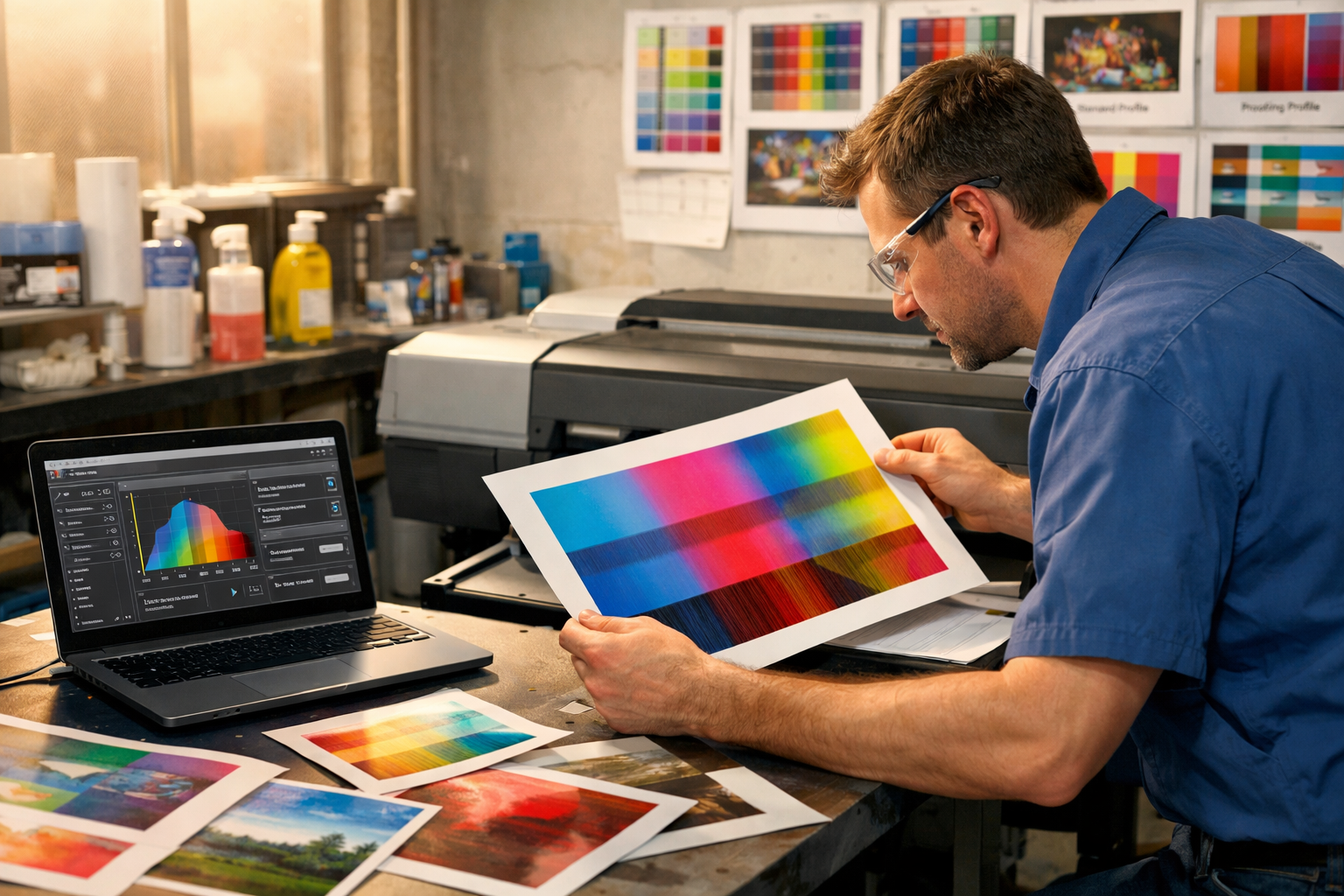
Color management can become incredibly complex, and there is rarely a single “easy fix.” However, there are several foundational steps that dramatically improve color consistency.
Start With Printer Health
First, ensure the printer is functioning properly:
- Run a nozzle check
- Confirm all ink channels are firing correctly
- Verify there are no clogged nozzles
Perform Printer Calibration
If your printer includes internal color calibration:
- Use the manufacturer-recommended calibration media
- Complete the calibration procedure before profiling or troubleshooting further
Use Correct Media Profiles
Always use:
- Manufacturer-approved media presets
- Correct ICC profiles for the printer and substrate combination
File Color Space Issues
In rare cases, inaccurate color may stem from incorrect or missing embedded color profiles within the image itself.
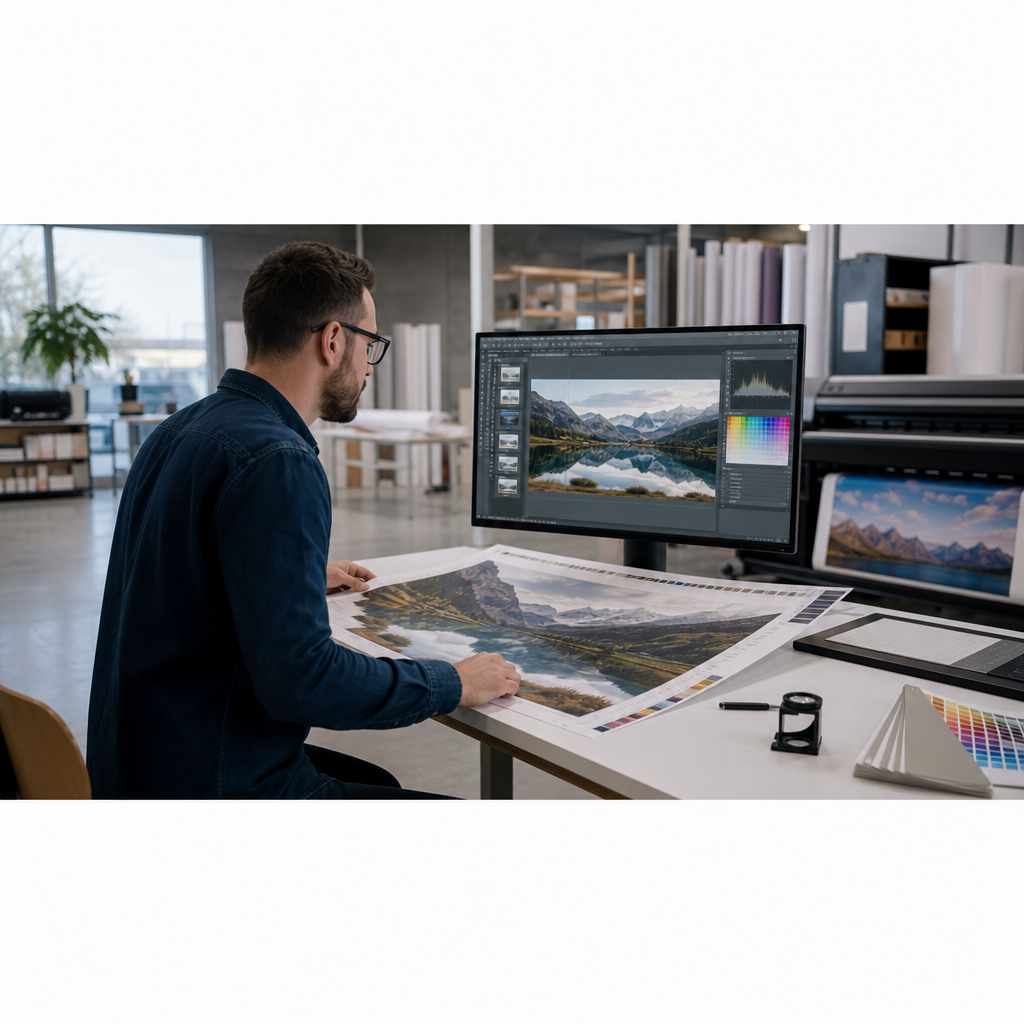
In applications like Adobe Photoshop, users can:
- Assign a color profile manually
- Preview profile conversions
- Compare visual differences to determine the likely original color space
Building Custom ICC Profiles
For maximum accuracy, many professionals create custom ICC profiles in-house using a spectrophotometer.
Custom profiling provides:
- More accurate color reproduction
- Better consistency across specialty media
- Improved control over production output
This is often the preferred route for color-critical environments.
Ink Drying and Curing Issues
Drying problems vary significantly depending on ink technology. Before troubleshooting, always verify that:
- The material is compatible with your ink type
- The SKU on the material matches the manufacturer’s technical documentation
1. Aqueous Inks (Dye or Pigment)
Drying issues are often caused by incorrect media settings.
Many aqueous printers use both:
- Photo black ink
- Matte black ink
Matte black inks do not dry properly on glossy or satin photo surfaces.
Common causes include:
- Incorrect media type selected in the driver
- Using matte settings on photo papers
Additional considerations:
- Water-resistant media may require 24 hours before finishing
- “Water-resistant” does not mean waterproof without lamination
2. Eco-Solvent Inks
Poor drying is usually caused by excessive ink limits.
Recommendations:
- Use manufacturer-approved media presets
- Reduce ink limits if necessary
Certain glossy polyester films are prone to “re-wetting,” where prints appear dry initially but stick together when wound onto a take-up reel.
This occurs because trapped outgassing vapors soften the ink.
Solutions include:
- Lowering ink limits
- Allowing prints to outgas individually for 24 hours before stacking
3. Resin / Latex Inks
Drying problems with resin and latex technologies are typically caused by:
- Over-inking
- Under-curing
- Or both simultaneously
These technologies require the proper balance of:
- Heat
- Dwell time under heat
- Ink load
Adjusting curing temperatures and print modes often resolves the issue.
4. UV Gel / UV-Curable Inks
Drying and adhesion issues with UV-curable inks are usually related to:
- Excessive ink limits
- Insufficient UV lamp power
Running higher pass modes increases exposure time under the UV lamps and often improves curing.
If ink remains tacky or rubs off:
- Increase UV lamp power
- Reduce ink limits
In some cases, the substrate itself has low surface energy, preventing proper adhesion.
For difficult materials:
- Apply a compatible adhesion primer before printing
This can significantly improve ink bonding on challenging surfaces.
Preventing Large Format Printing Problems Before They Start
Large-format printer troubleshooting starts with identifying the root cause of print quality issues before they disrupt production. Whether you're dealing with banding, printhead strikes, color inconsistencies, inaccurate print lengths, or curing challenges, proper maintenance, calibration, and media settings are critical to achieving consistent results. By following manufacturer recommendations and taking a proactive approach to troubleshooting, print providers can reduce downtime, improve output quality, and keep production running efficiently across a wide range of applications.
%20200-86.png?width=200&height=86&name=LexJet_PNG%20(1)%20200-86.png "LexJet")

.jpg)
Post a comment